
Connecting payments is the single biggest time-saver in Listo: invoices become payable online, cards can be kept on file, and repeat clients can be charged automatically.
Connect Stripe
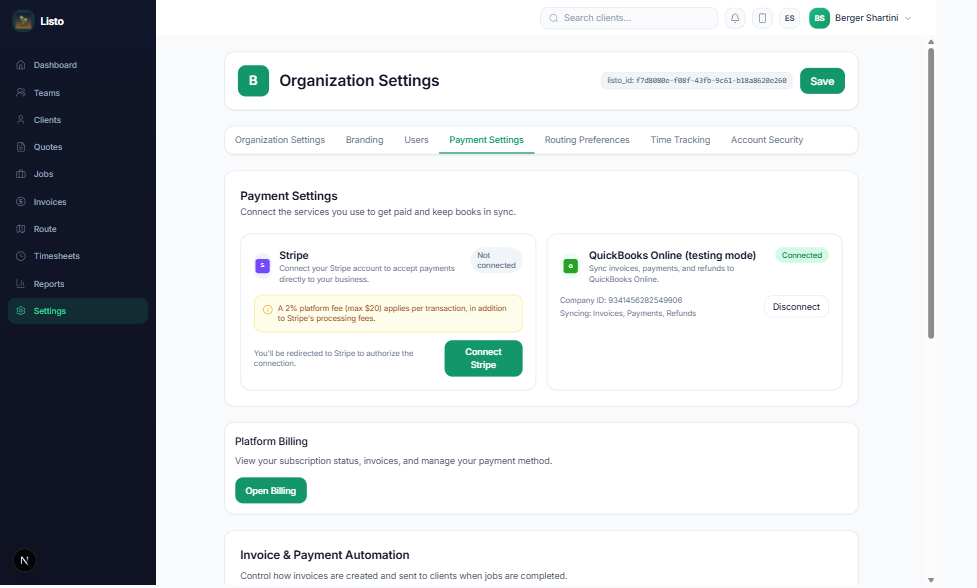
- 1Go to Settings → Payment Settings.
- 2Start Stripe Connect onboarding and follow Stripe's prompts to verify your business and bank account.
- 3Once connected, every invoice you send includes a secure Pay button, and you can charge cards on file with Charge Now.
- 4Optionally enable passing Stripe processing fees to the customer.
Get cards on file
- 1From the Clients page (or any client profile), use Request payment info — individually or in bulk.
- 2Your client receives a secure Payment Information Setup link where they click Add Payment Method Securely.
- 3They're never charged at setup — the card is simply saved for future invoices.
- 4Clients with a saved method can be enrolled in Auto Pay, so invoices charge automatically when due.
Automate the busywork
- Auto-email invoices when jobs complete, and auto-charge clients on Auto Pay — set org-wide defaults, then override per client.
- Choose each client's billing cadence: Immediate (invoice per job) or Monthly (one consolidated month-end invoice).
- Automatic overdue reminders start 3 days after an invoice is sent and never nag more often than every 3 days.
- Connect QuickBooks Online in Payment Settings to keep your accounting in sync.
Tip: The transaction fee for Listo's integrated payments is 1.5%, capped at $20 per transaction — and it's optional, since you can bring your own payment processor.