
Quotes in Listo go from draft to approved to scheduled job without re-typing anything. The Quotes page also tracks your win rate with KPIs for Total Quotes, Awaiting Response, Approved, and Converted.
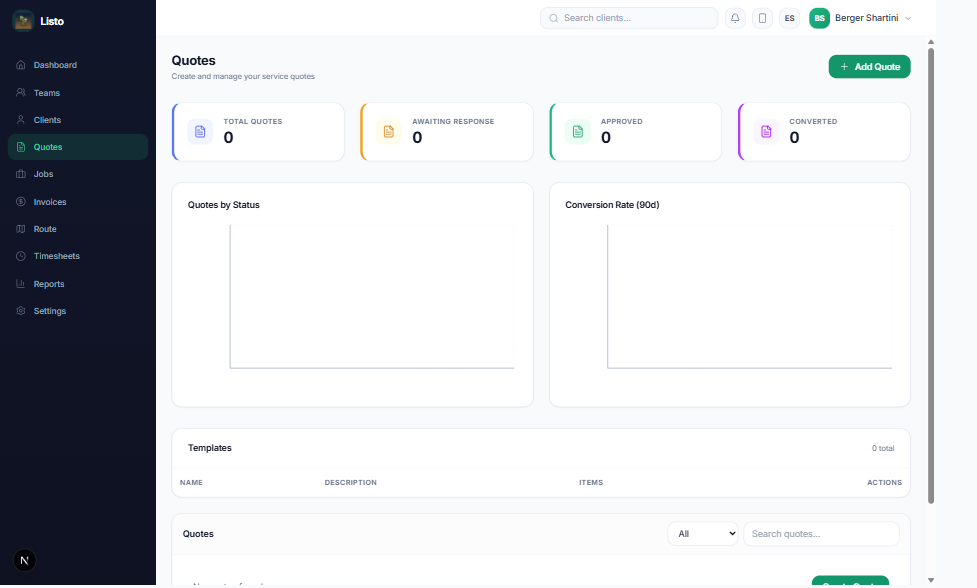
Create a quote
- 1On the Quotes page, start a new quote and pick the client.
- 2Add line items — name, quantity, and unit price — or pull them straight from your services catalog.
- 3Add notes for the customer, and optionally mark the work as recurring (Weekly, Biweekly, or Monthly).
- 4Save as a Draft, or send it right away.
Tip: Quote the same work often? Save any quote as a template, then click Use Template next time to prefill everything.
What your customer sees
Sending a quote emails your customer a secure link. They see your branding, the line items, and any expiration date — and can click Approve Quote from any device, no account needed. You'll see delivery status right on the quote list (Delivered, Bounced, Failed), so you know it landed.
Quote statuses
- Draft — still editable, not yet sent.
- Sent — delivered and awaiting a response.
- Approved — customer said yes (or you used Manually approve for verbal approvals, recording who approved and when).
- Declined or Expired — no deal this time; archive it to keep the list clean.
Convert wins into jobs
- 1Once a quote is Approved, open its actions menu and click Convert to Job.
- 2Listo creates the job (or the recurring series) with the client, services, and pricing already filled in.
- 3The quote is marked Converted and links to the job with View Job, so nothing gets quoted twice.
Customers can also come to you: the public Request a Service form lets them pick services, describe the work, attach photos, and tell you their timing — it lands on your Quotes page ready to price.