
Every client-facing document Listo sends — quotes, invoices, and the client portal itself — can carry your logo and colors. It takes about two minutes to set up.
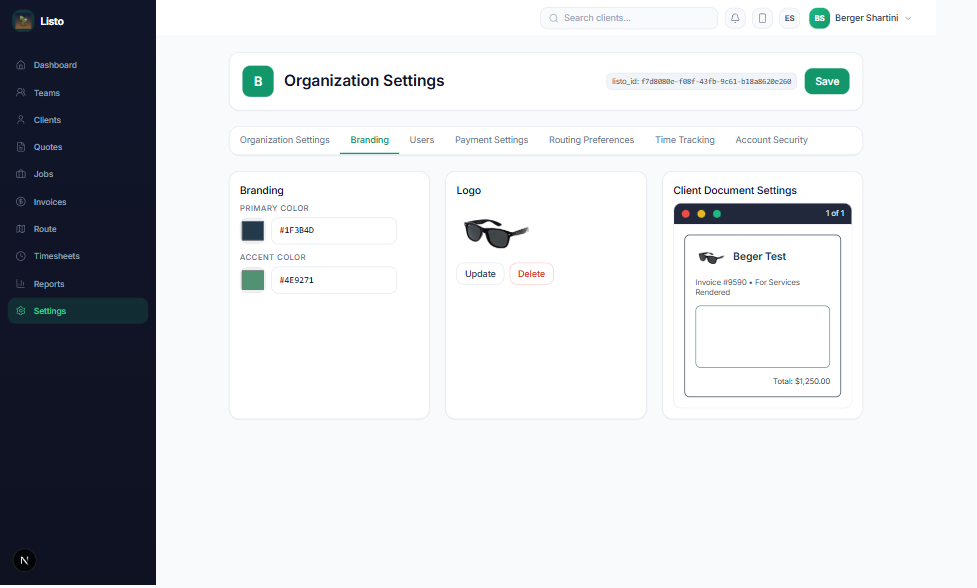
Set your brand
- 1Go to Settings → Branding.
- 2Pick your Primary Color and Accent Color — enter hex codes to match your existing brand exactly.
- 3Upload your Logo (Update replaces it, Delete removes it).
- 4Check the Client Document Settings preview on the right — it shows exactly how your invoices and quotes will look.
- 5Click Save.
Where your branding shows up
- Quotes and invoices emailed to clients, and their printable versions.
- The Client Portal login and dashboard your customers see.
- Payment pages where clients pay invoices online.
Tip: A square logo with a transparent background (PNG) looks best across documents and the portal header.