
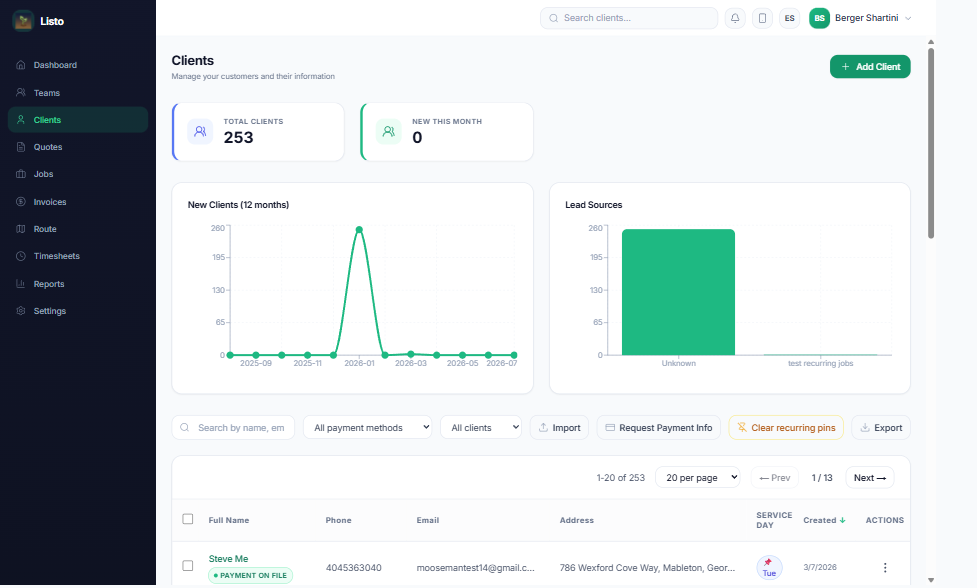
The Clients page is your customer database — every property, preference, note, and dollar in one place.
Add clients one at a time
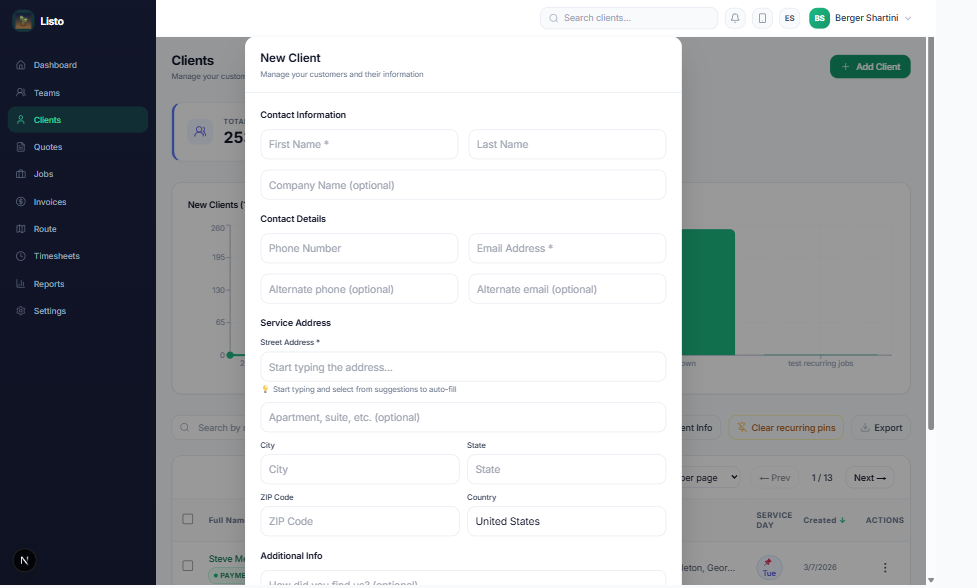
- 1On the Clients page, click Add Client.
- 2Fill in the required fields: First name, Email, and Address (the address autocompletes and is geocoded automatically for routing).
- 3Optionally add last name, company, alternate email, phone, lead source, and a preferred day of the week for service.
- 4Click save. If Listo spots a possible duplicate, it shows you the existing client so you can open it instead — or create the new record anyway.
Import your existing client list
Moving from spreadsheets or another platform? Use Import on the Clients page to upload or paste a CSV. Listo previews the rows before anything is saved, so you can confirm the mapping first.
Find and organize clients
- Search by name and sort by name, company, city, state, email, phone, or created date.
- Filter by payment method on file (handy before enabling autopay) and by Active vs Paused clients.
- Use Export to download your client list as a CSV anytime.
The client profile
Open any client to see three tabs: Overview, Edit Details, and Payments. The Overview is where day-to-day work happens:
- Client Notes — notes the client can see; Internal Comments — staff-only.
- Service Rates — set custom per-service pricing for this client that overrides your catalog defaults.
- Preferred day — pin the weekday this client prefers, and scheduling will respect it.
- Schedule History — a full audit trail of schedule changes, with one-click restore.
- Quick links to the client's Jobs, Invoices, and Quotes, plus an Auto Pay badge when they're enrolled.
Pause and resume service
Going on hold for the season? Pause Client cancels their upcoming jobs while keeping all history. When they're back, Resume Client offers to regenerate their recurring jobs from a start date you choose.
Tip: Use Request payment info (single client or in bulk) to email customers a secure link where they add a card on file — a prerequisite for autopay and one-click charging.