
The Route page turns each team's day into an ordered, drive-time-optimized run sheet with a map. Less windshield time means more jobs done.
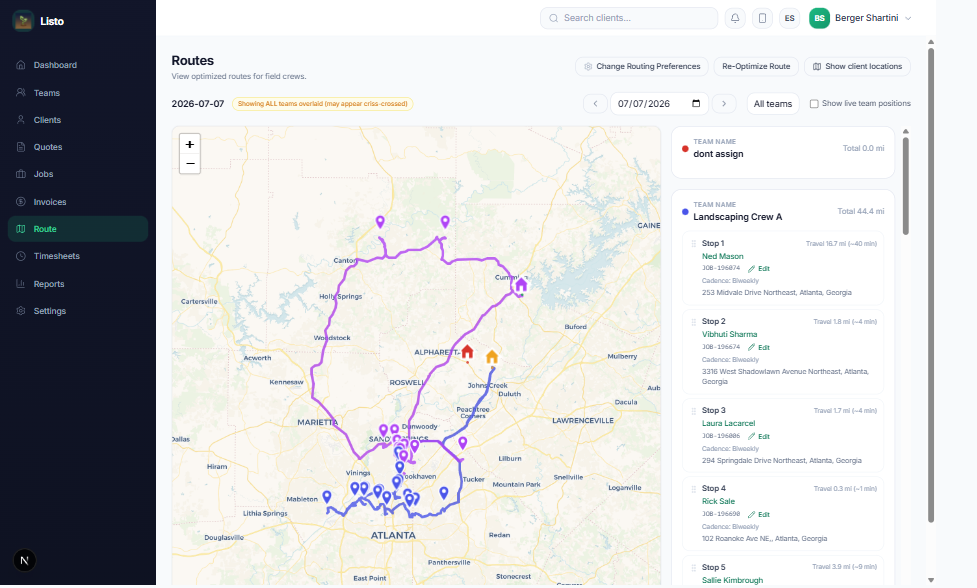
Work a day's routes
- 1Open Route and use the day picker to choose the date; filter to a specific team if you like.
- 2Each team shows its stops in order on a map, numbered from the team's start location.
- 3Drag and drop stops to reorder — Listo saves your custom order, and can apply it to future weeks on the same weekday.
- 4Click Optimize This Day (or Re-Optimize Route in Round-Robin mode) to let Listo find the fastest order.
Two routing modes
- Round-Robin (default) — Listo builds balanced, geographically clustered schedules across your teams, ideal for dense recurring work like lawn care and cleaning.
- Classic — you schedule, Listo optimizes each day's stop order. Switch modes anytime under Settings → Routing Preferences.
Keep eyes on the field
- Turn on Live locations to see team GPS positions on the map, refreshed every 15 seconds (crews opt in via "Share location with team" in the mobile app).
- Mark stops completed right from the route list as the day progresses.
- Show Client Locations overlays every client on the map so you can spot route-friendly prospects.
Tip: Accurate addresses make great routes. New client addresses are geocoded automatically, and you can refresh geocoding from the Route page if a pin looks off.