
Routing Preferences (under Settings) is where you teach Listo how your business likes to schedule. Set it once and every Build Schedule and route optimization follows your rules.
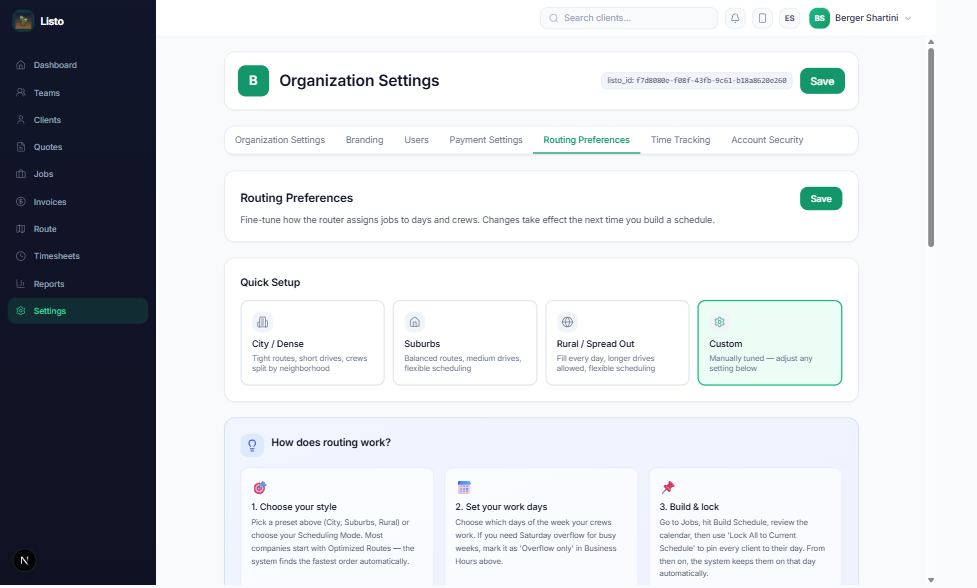
Start with a Quick Setup preset
- City / Dense — tight routes, short drives, crews split by neighborhood.
- Suburbs — balanced routes, medium drives, flexible scheduling. A safe default for most companies.
- Rural / Spread Out — fill every day, longer drives allowed, flexible scheduling.
- Custom — shown automatically once you adjust any individual setting.
Pick a scheduling mode
- Optimized Routes — the router picks the best day for each job based on geography and capacity. Maximum efficiency.
- Fixed Day — every client is locked to their assigned day, for predictable "we come every Tuesday" schedules.
- Hybrid — clients with an assigned day are locked; everyone else is routed dynamically.
Fine-tune the details
- Weekly Job Days — choose which weekdays recurring customers should land on, and whether that rule is Strict, Preferred, or Off.
- Route Tightness — from Ultra tight (least driving) to Fill every day (fullest days).
- Minimum Jobs Per Day — don't dispatch a crew for just one stop; set a floor or 0 to disable.
- Split Jobs By Area — group nearby jobs to the same crew so teams don't criss-cross town.
- Advanced Settings — visit gap ranges per cadence, average drive speed, time per job, and catch-up priority for clients falling behind schedule.
Tip: Not sure where to start? Use the Suburbs preset with Fixed Day mode — it behaves like traditional scheduling. Once you trust the router, switch to Optimized Routes and let it find the fastest days for you.