
Timesheets are optional — turn them on under Settings → Time Tracking, where you can also require location with entries, enable photo capture, and choose who approves hours (it defaults to the owner).
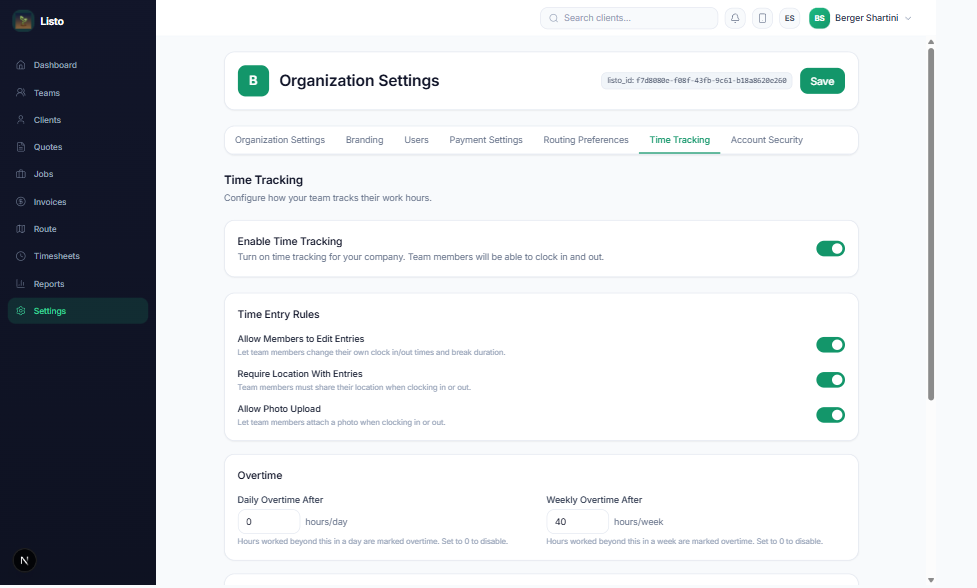
For field workers
- 1Open Timesheets (in the mobile app or on desktop) to see My Timesheet.
- 2Tap Clock In at the start of the day. If your company requires it, your location is recorded and you may be asked for a photo.
- 3While clocked in you'll see "Clocked in since" with a live timer — and "Tracking active" if location sharing is on.
- 4Tap Clock Out when you're done. Use + Add Manual Entry to record hours you forgot (if your company allows it).
For managers
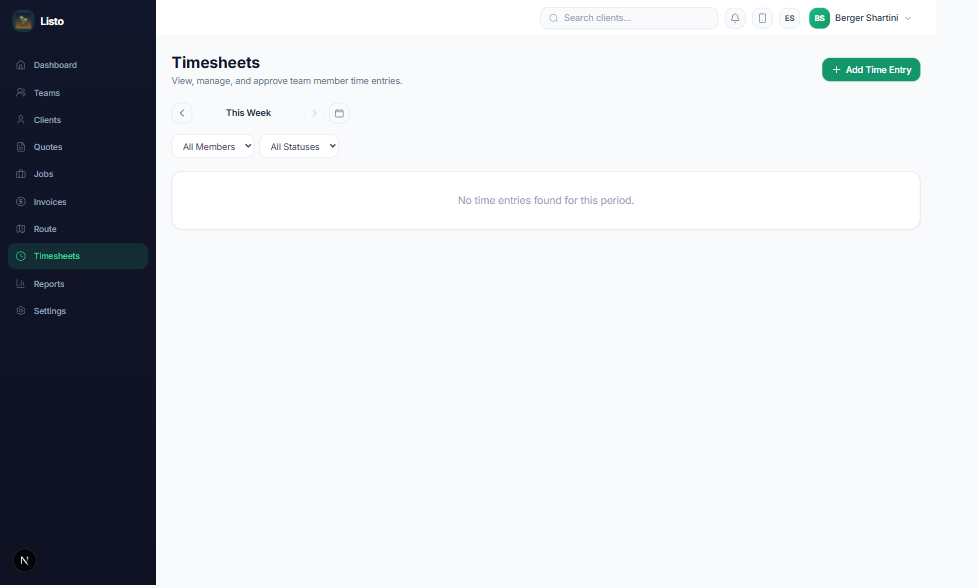
- Navigate weeks (This week, Last week, or a custom range) and filter by person or status.
- Approve or reject entries, with summary cards totaling the week.
- Add or edit entries manually — date, clock in/out, break minutes, notes, and photos.
- Open the location trail map on any entry to see where the day went.
Tip: Requiring location with clock-ins gives you a defensible record for payroll and client disputes — crews see exactly what's recorded, so there are no surprises.